
Cursor Review: Is an AI Code Editor Actually Better Than a Regular IDE?
Cursor is one of the AI tools I get asked about the most, usually with some version of the same question: is it actually different from VS Code with an AI extension, or is it the same experience with a new coat of paint? I spent real time inside Cursor on actual tasks instead of a five-minute demo to answer that properly, because the marketing language around “AI-native editors” tends to promise more than the daily experience delivers.
Short version before the details: yes, it is different. Not because the editor looks different – it’s a VS Code fork, so your extensions, themes and keybindings carry over – but because the AI sits inside the core editing loop instead of next to it. Whether that makes it “better” depends heavily on what kind of coding you actually do.
What Cursor actually is
Cursor is built by a company called Anysphere as a fork of VS Code, which means the foundation is familiar. The part that isn’t familiar is everything layered on top:
- Tab – context-aware autocomplete that predicts your next edit, not just the next line
- Composer – a multi-file editing mode where you describe a change in plain language and Cursor applies it across the project
- Agent mode – a more autonomous mode that can read files, write code, run terminal commands and iterate on the result
- Background agents – newer additions that run coding tasks in isolated environments in parallel, so you can hand off a task and keep working on something else
- Model choice – you can pick between several frontier models depending on the task, or let Cursor choose automatically
- MCP support – connecting external tools and data sources directly into the AI’s context

That’s a meaningfully different toolset than “autocomplete plus a chat panel,” which is closer to what most AI extensions for traditional IDEs offer.
How I tested it
I didn’t want a toy example, so I gave Cursor three different kinds of tasks across a real project:
- A small, well-defined fix – adding input validation to a handful of form fields.
- A multi-file change – renaming a data field used across the backend, the database layer and a few frontend components.
- An ambiguous, larger task – “add basic rate limiting to the API,” with no further instructions, to see how it handled a decision that required some judgment.
I used Tab for everyday completions throughout, Composer for the multi-file rename, and Agent mode for the rate-limiting task.
Where it genuinely felt different from a regular IDE
The small fix is where I noticed the first real difference. Tab’s suggestions weren’t just completing the current line – they were anticipating edits a few lines down based on what I’d already changed nearby. That’s a small thing, but it changes the rhythm of typing. A standard AI extension waits for you to ask. Tab assumes you’re mid-edit and tries to keep up with you.
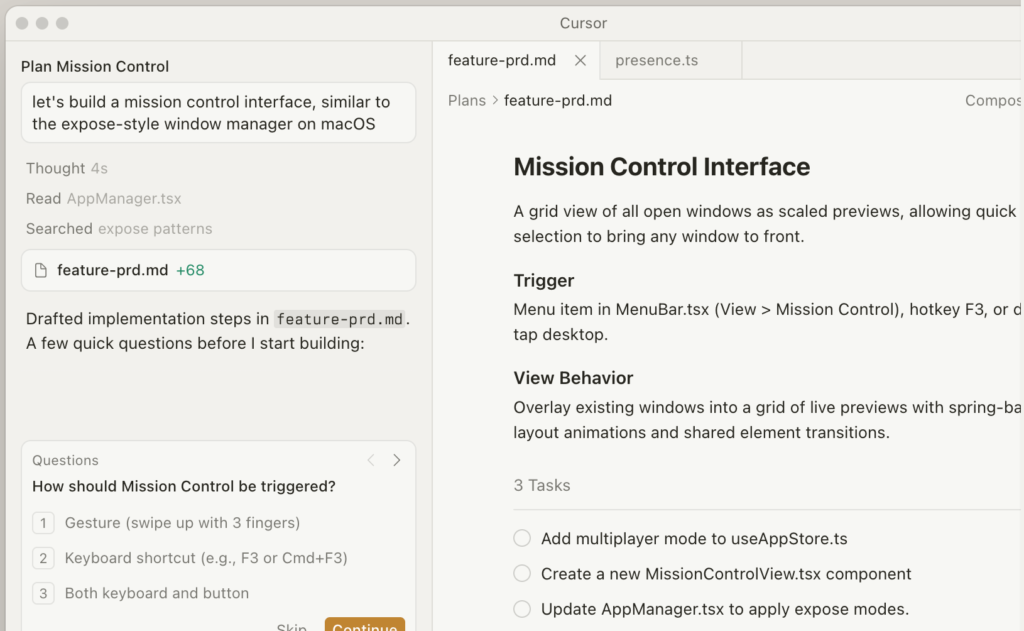
The multi-file rename is where Composer earned its place. I described the change once – old field name, new field name, the layers it touched – and it found and updated the backend model, the migration, and three frontend components without me opening each file manually. It missed one reference in a seed script that wasn’t part of the obvious file pattern, which I caught by running the test suite afterward. Not flawless, but meaningfully faster than doing the same rename by hand across five files.
Agent mode on the rate-limiting task was the most interesting test, because it required interpretation. It chose a reasonable approach – a basic in-memory limiter with a sane default – explained the choice, wrote the code, and ran it to confirm the server still started correctly. I disagreed with the default it picked for production use and adjusted it manually, which is exactly how I think this should work: the agent proposes, I decide.
Where it still breaks down
A few honest problems from this round of testing:
- The pricing model is genuinely confusing. Cursor mixes “fast” and “slow” requests, a credit pool, and an Auto mode that behaves differently from manually picking a model. I had to read the pricing page twice to understand why my usage was draining faster on some days than others.
- Performance on a larger project lagged noticeably behind plain VS Code, especially with background indexing running while I was also using Composer.
- Agent mode can still hallucinate a dependency or a function that doesn’t exist in the project, particularly when working with a less common library. I caught this once during testing and had to point it back to the real API.
- None of this removes the need to read every diff. Composer and Agent mode both produce changes that look complete and confident even when something is subtly wrong, which is the same trap I’ve flagged with AI coding assistants generally.
Cursor’s pricing, briefly
As of this round of testing, Cursor offers a free Hobby tier with limited completions and a small number of premium requests, a Pro plan around $20/month with a larger usage pool and access to premium models, a higher Pro+ tier for heavier use, and a Business/Teams plan per seat with centralized billing and privacy controls. I’d treat these numbers as a snapshot rather than a guarantee – usage-based AI pricing has changed more than once across every tool in this category recently, Cursor included.

Good prompts and habits that worked well in Cursor
A few patterns that consistently produced better results during testing:
Rename the field “status” to “orderStatus” across the backend model, the database migration, and any frontend component that references it. List every file you change.
Add rate limiting to this API route. Explain your approach before writing the code, and use a method that’s easy to swap out later.
Refactor this function for readability without changing its behavior. Show me the diff and explain each change.
The pattern that works across all of them: be specific about scope, ask for an explanation alongside the change, and tell it explicitly when behavior must not change. Vague instructions get vague, overconfident results – same lesson as prompting any other AI tool, just applied inside an editor instead of a chat window.
So, is it actually better than a regular IDE?
It depends on what you mean by “better.” If you mostly write code the traditional way and want occasional AI help, a regular IDE with a solid extension will get you most of the value without the higher price tag or the learning curve around credits and modes. If a meaningful chunk of your work is multi-file changes, repetitive refactors, or tasks you’d happily hand to a capable junior developer with supervision, Cursor’s Composer and Agent mode change the actual shape of your workday – not just the speed of typing, but which tasks you do yourself versus delegate and review.
My honest takeaway: Cursor isn’t a better version of a regular IDE in some absolute sense. It’s a different relationship between you and your code, where more of the execution can be delegated and more of your attention shifts toward reviewing and deciding. That’s valuable if you actually use those features daily. It’s an expensive autocomplete tool if you don’t.
If you want the deeper version of this argument – what AI coding tools are reliably good at and where they need a human checking the work regardless of which editor you use – I covered that in detail in AI Coding Assistants: What They Can and Cannot Do. And if you’re curious how this same “AI speeds up execution, not judgment” pattern shows up outside of code entirely, I found the same thing testing AI website builders, which I write about in Why AI Can Help You Build a Website – But Not Replace Good Thinking.